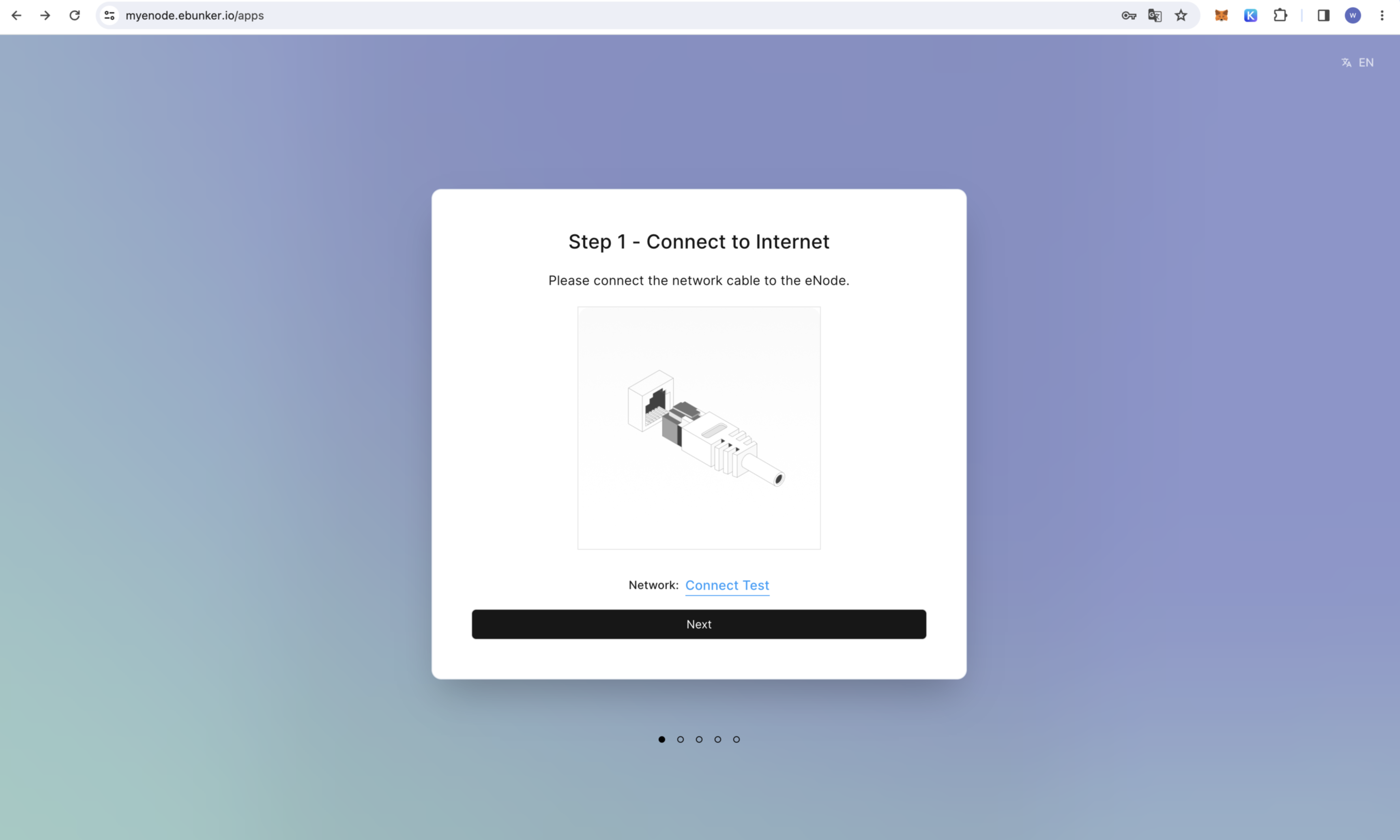
Connect to a wired network, and the device will start syncing.
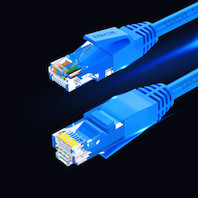
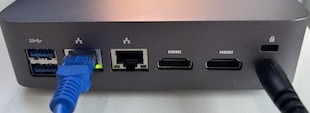
Prepare an Ethernet cable, plug one end of the Ethernet cable with a crystal head (as shown below) into the home network port or router port, and plug the other end into the eNode network port (as shown below) to complete the network connection.
Click on "Connection Test," and the page will perform a network connection test. After confirming that the network is connected, click "Next."
If the connection fails, please check the home network or router network status.
Note:
Currently, eNode does not support wireless network connections.
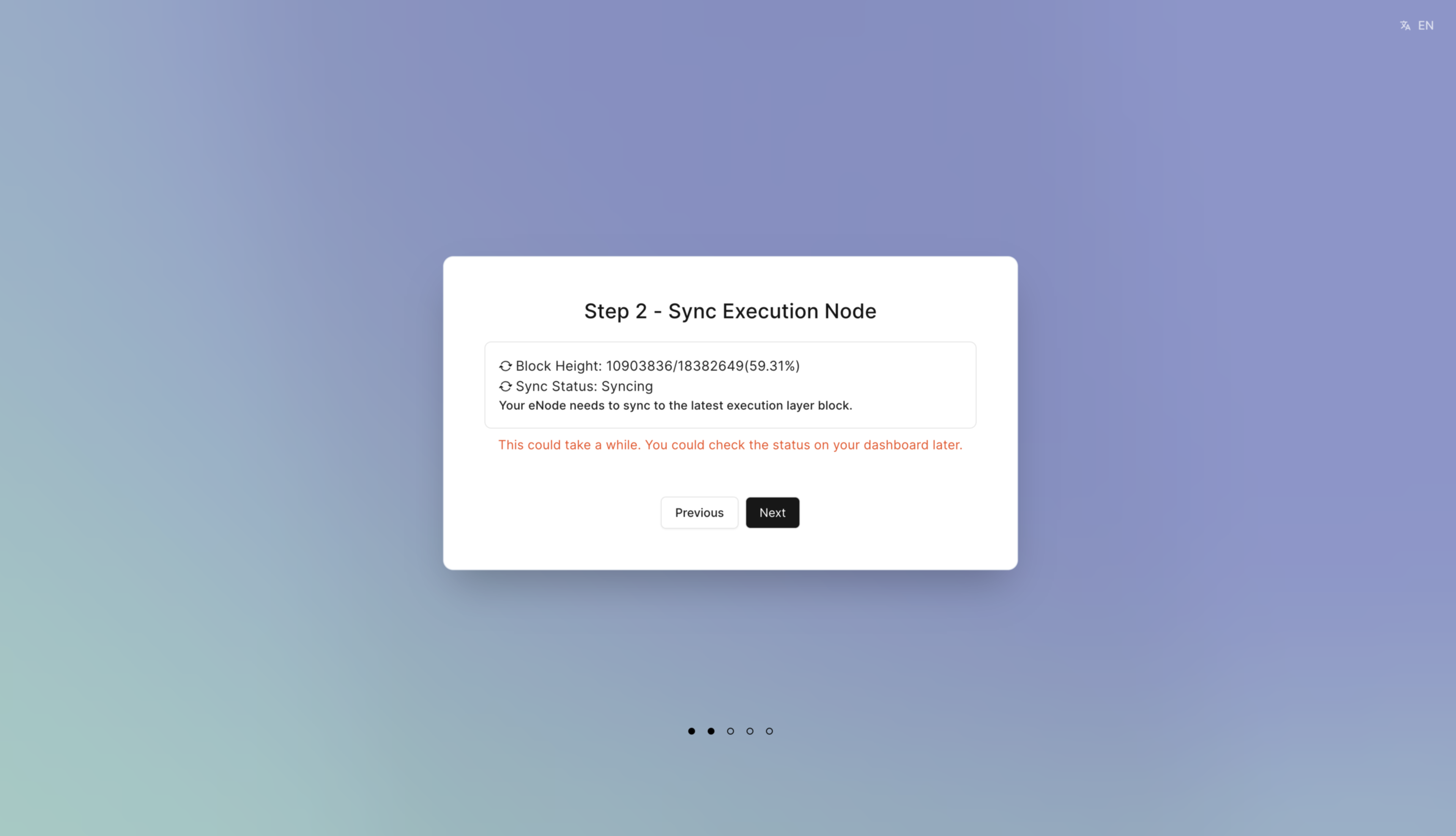
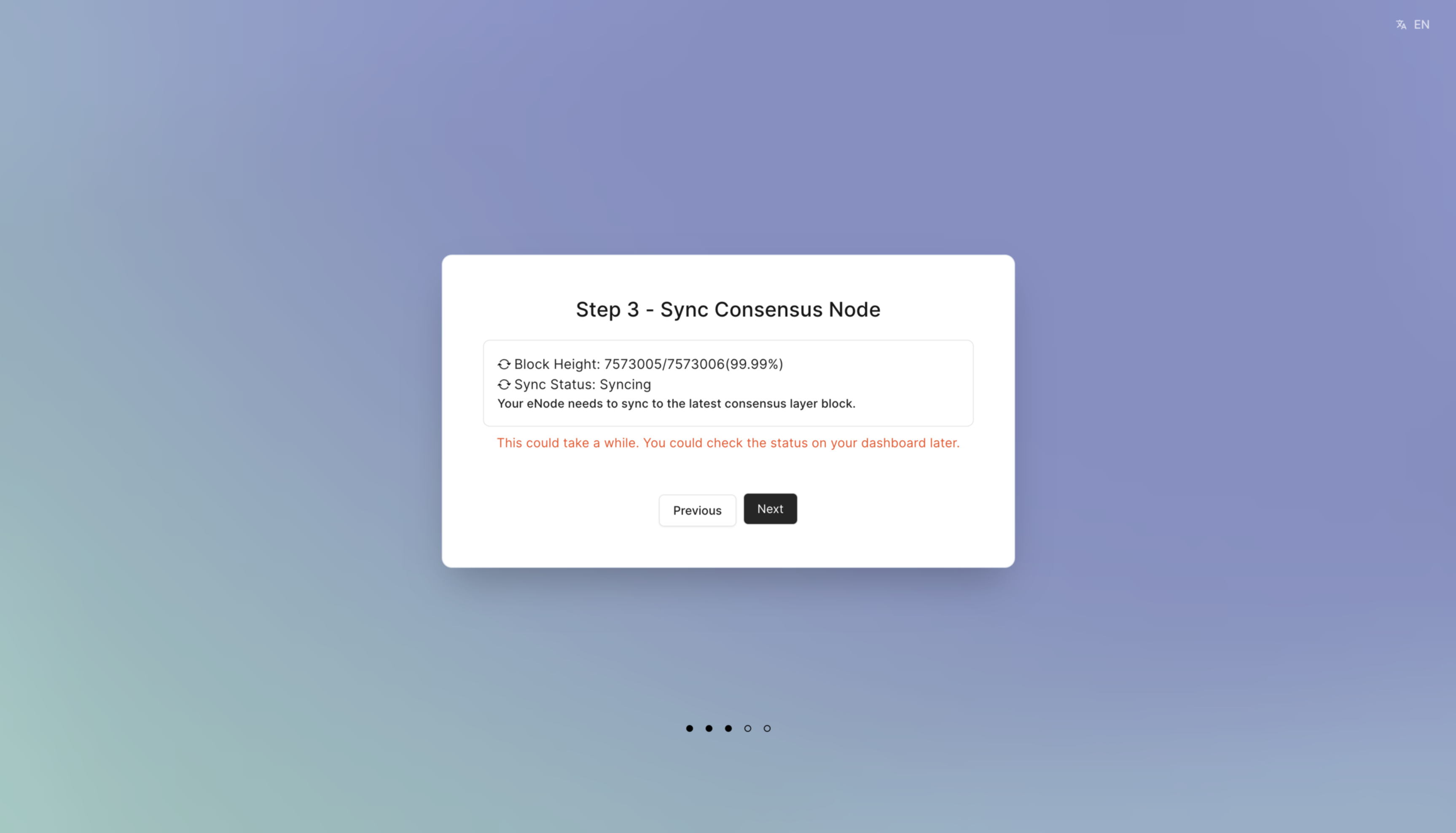
To stake ETH, you need to run both execution layer nodes and consensus layer nodes simultaneously.
Check the execution layer node block synchronization status in the upper left corner. Wait for the node status to show "Synchronization Completed" before proceeding with node staking. Click "Next."
You can check the consensus layer node block synchronization status in the upper left corner. Wait for the node status to show "Synchronization Completed" before proceeding with node staking. Click "Next."
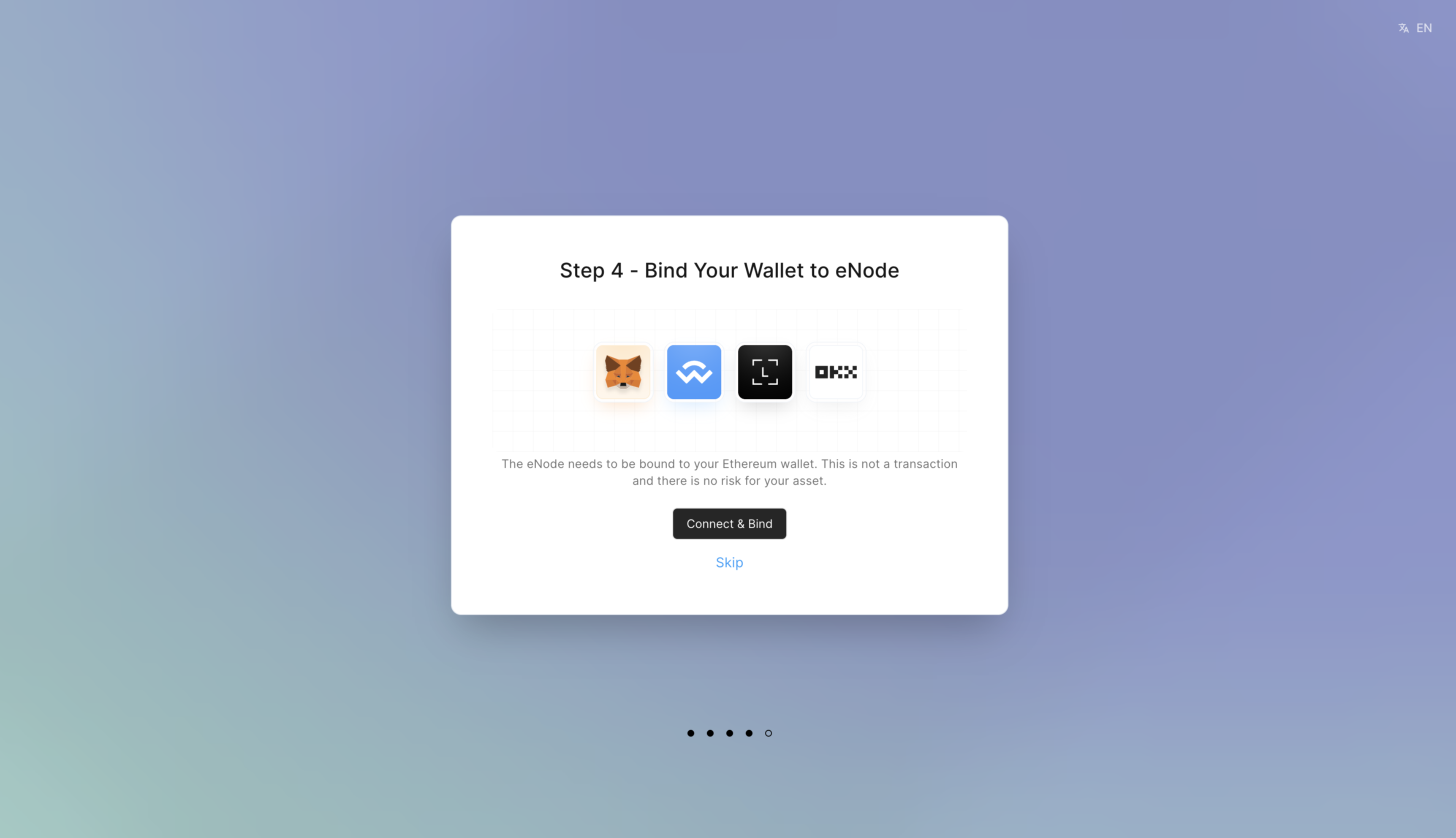
Click "Connect & Bind" wallet and choose your wallet address for connection and binding. If you are unable to bind at the moment or prefer not to bind, you can click "Skip" to proceed to the next step.
After binding, your wallet will be linked to your eNode, and you can view eNode details through the official website.
Note: Unbinding can be done at the top right corner of the main page under "Connect Wallet."
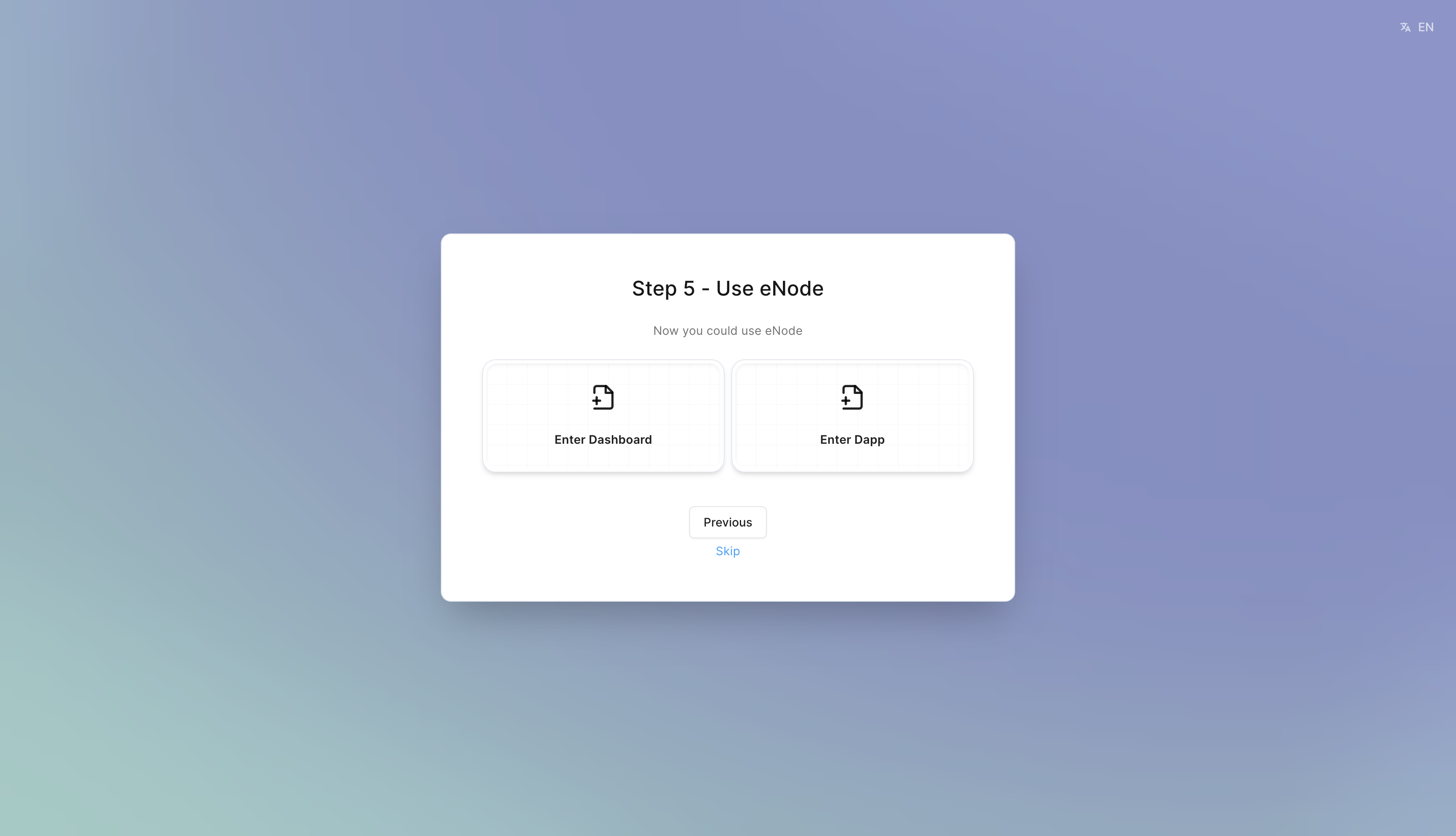
After the execution nodes and consensus nodes have all completed synchronization, you can create a validator.
Choose to create a validator using a mnemonic phrase, or you can directly import a node key to create a validator. If you don't want to create a node at the moment, click "Skip" to go to the dashboard page.