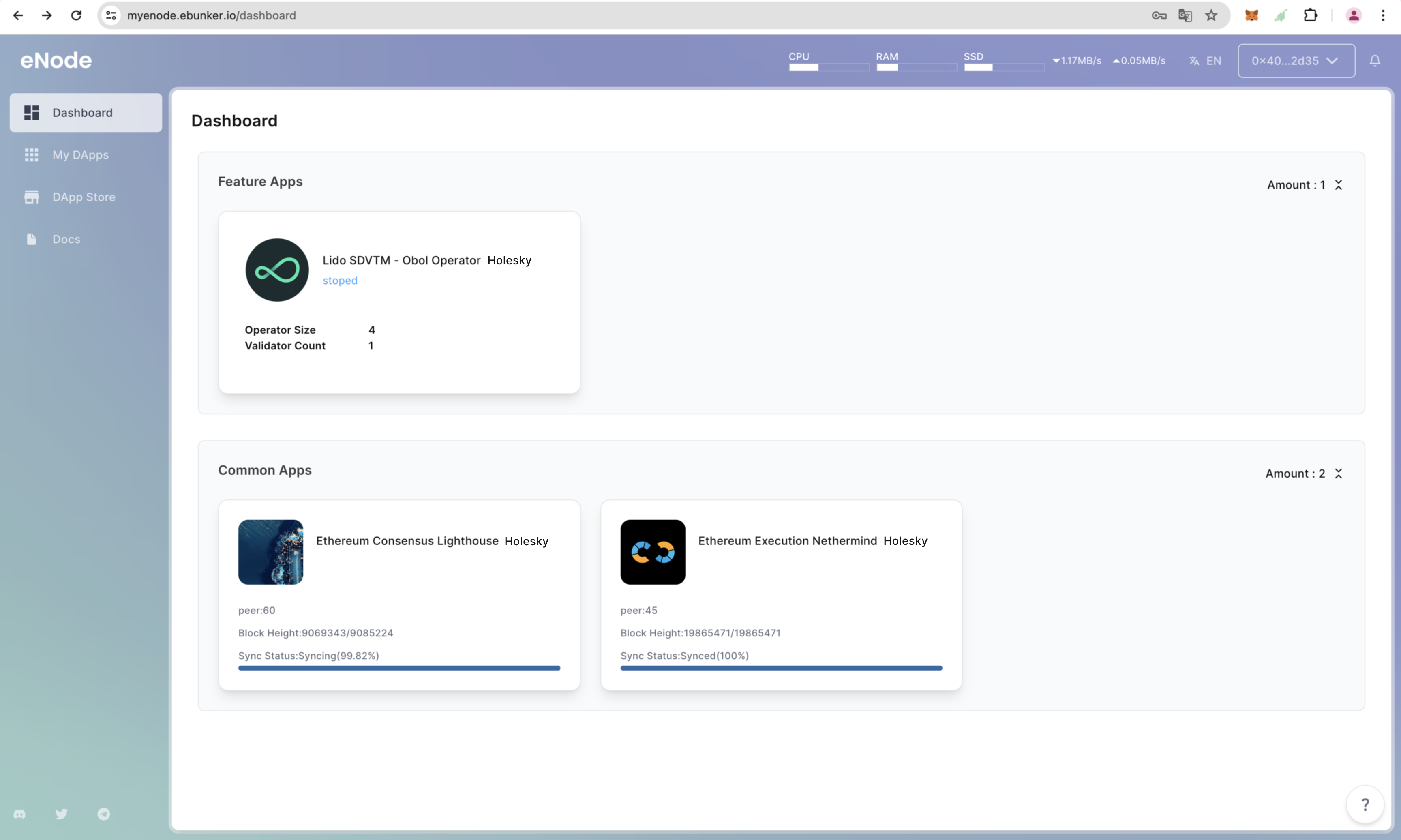
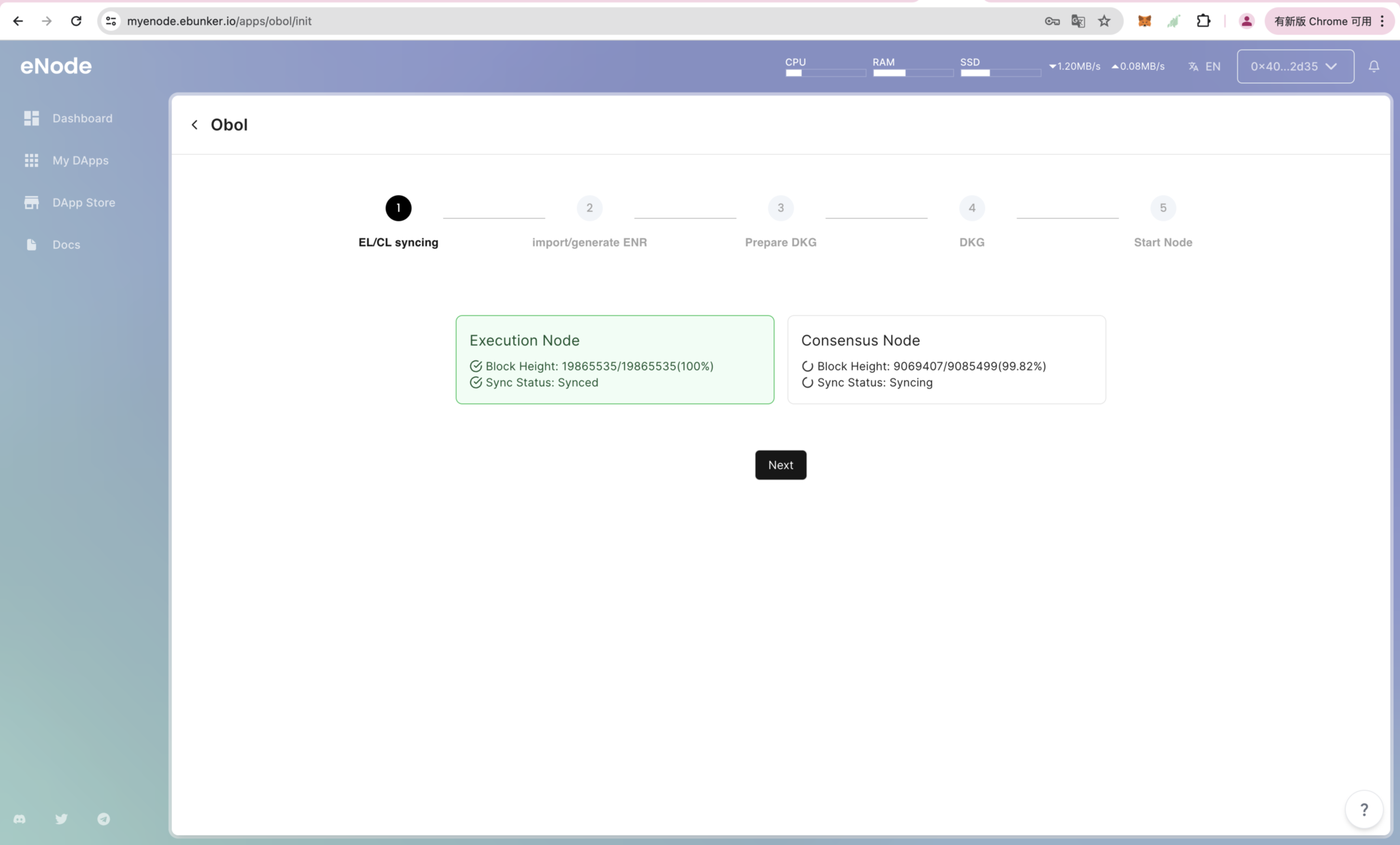
Check the synchronization status of the Consensus Layer/Execution Layer blocks. Confirm block synchronization completion before proceeding to the next step.
Failure to synchronize blocks may result in node operation failure.
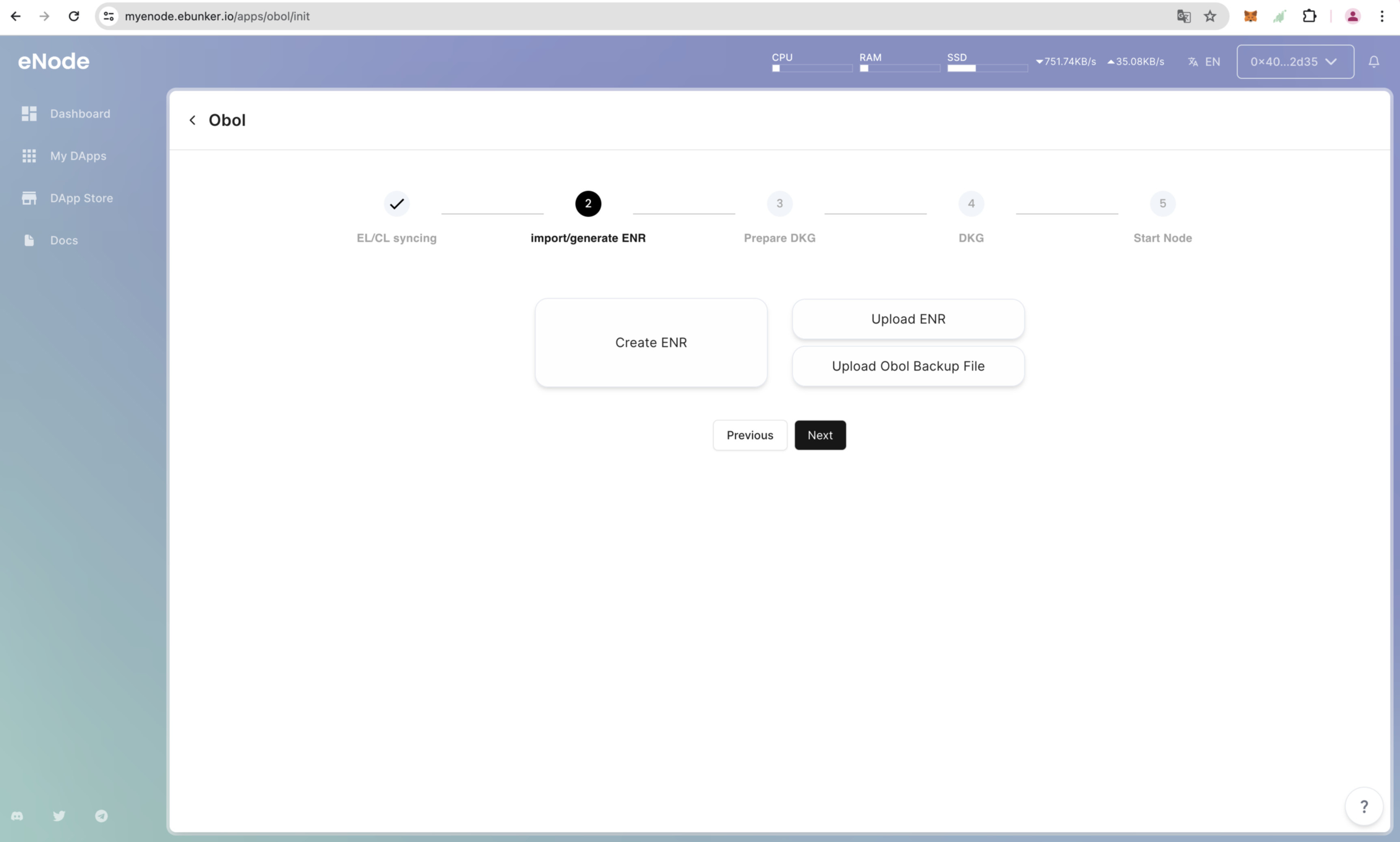
In order to prepare for a distributed key generation ceremony, you need to create an ENR for your charon client. This ENR is a public/private key pair that allows the other charon clients in the DKG to identify and connect to your node.
Click on Create ENR to create ENR. After creation, back up the ENR and send it to the group leader; or click on Import ENR to import an already created ENR.
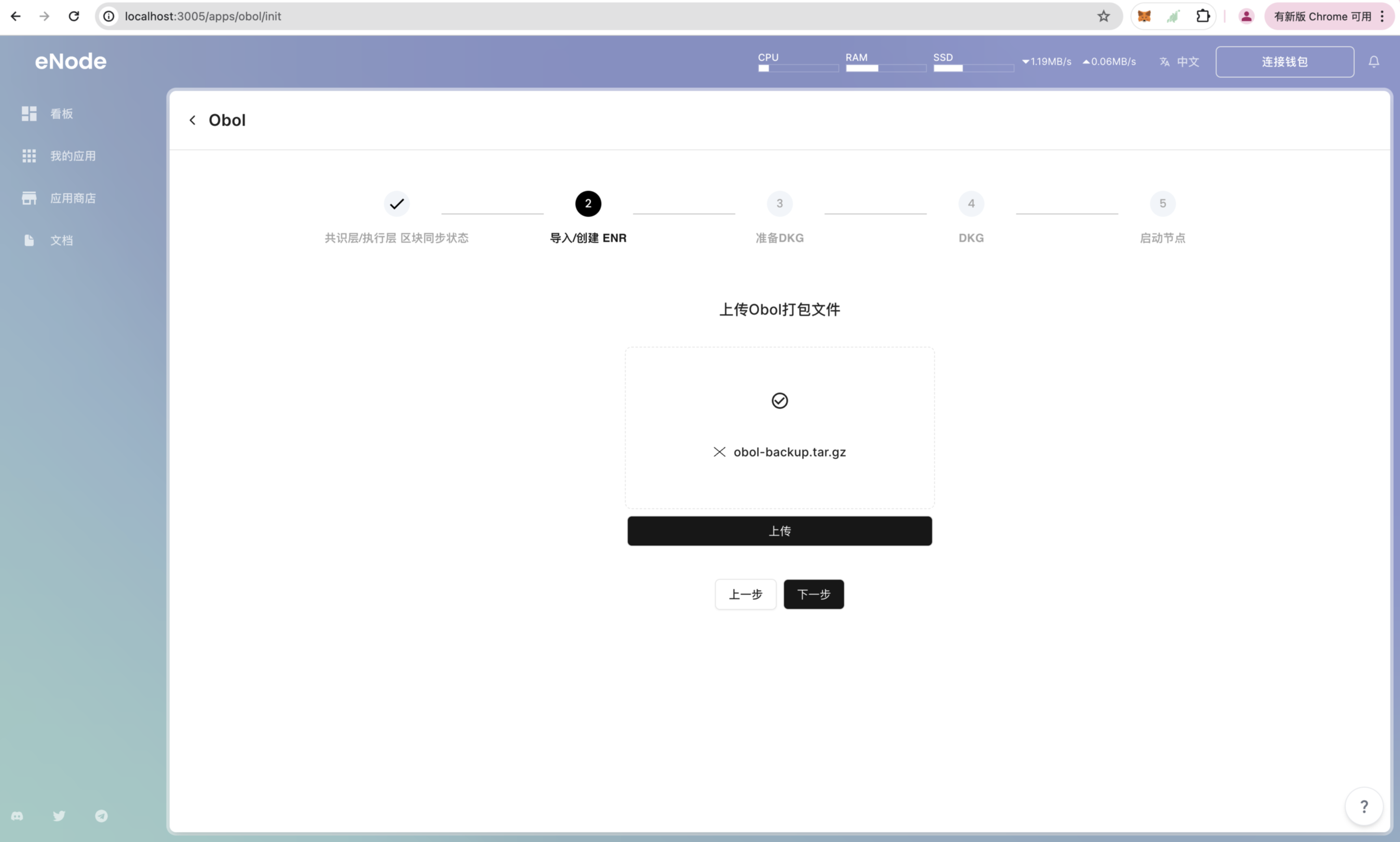
Upload Obol Backup File is used to import and run the completed Obol Operator backup file on the eNode. If there is an existing completed Obol validator, you can use this function to complete the backup file upload and re-run.
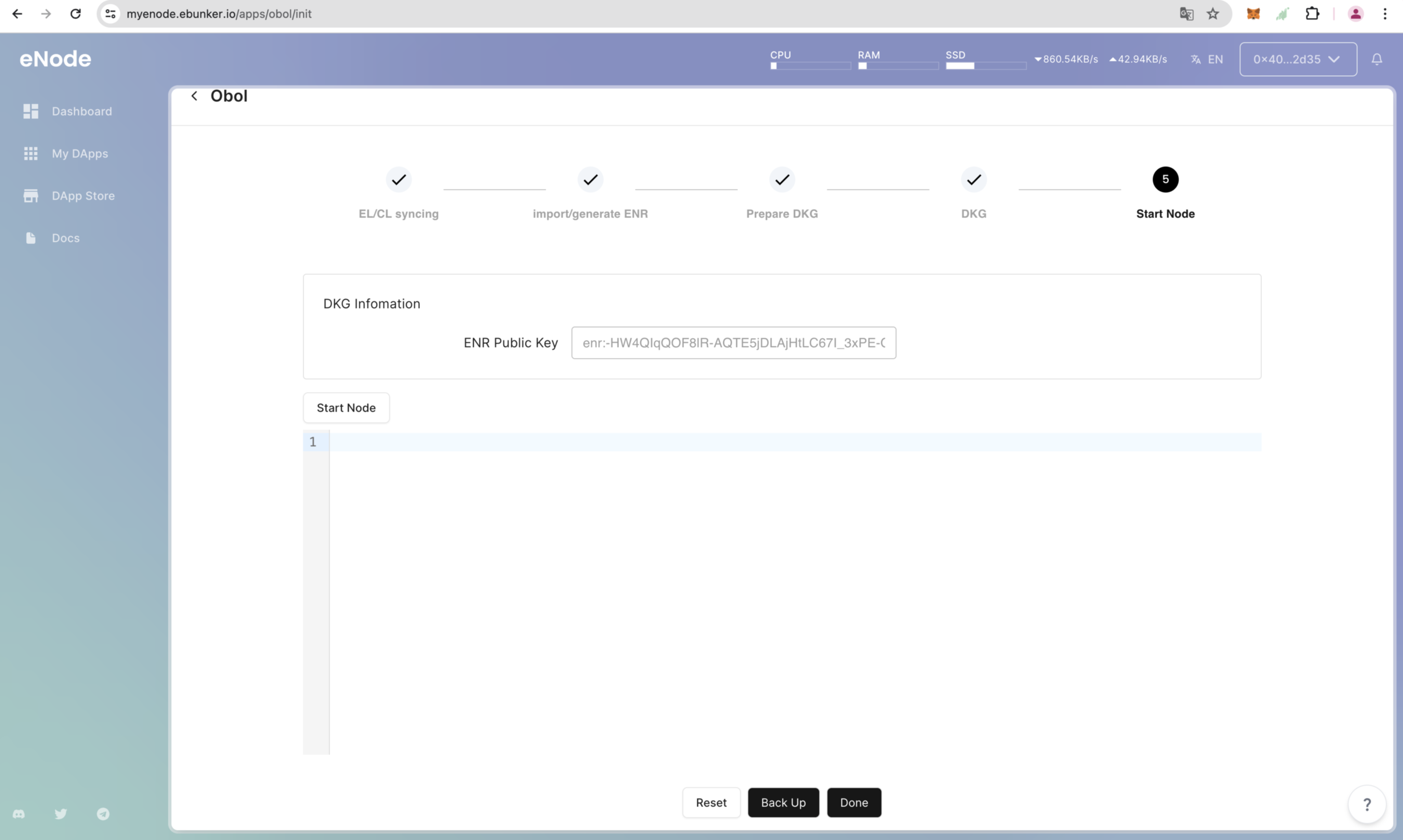
After importing the backup file, go directly to the node startup page, confirm the information is correct, and click Start Node to complete the node recovery.
After the group leader completes the DKG import, a DKG Definition file will be generated. Copy the Definition URL or download the Definition file.
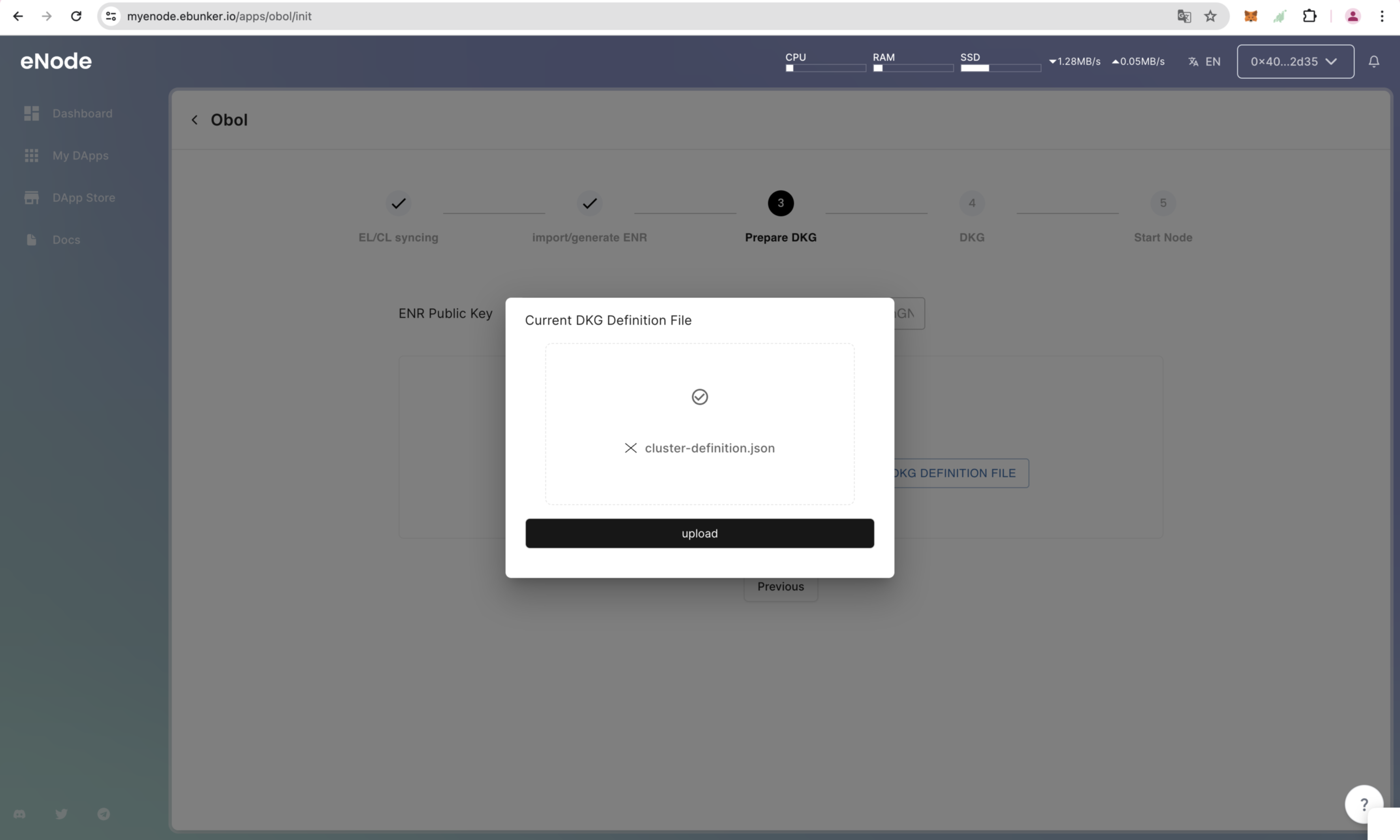
Click on Upload DKG Definition URL and enter the Definition URL. If the upload fails, it indicates that the eNode network cannot obtain the Definition file information. Please manually download the file and upload it.
Alternatively, click on Upload DKG Definition File and upload the downloaded Definition file.
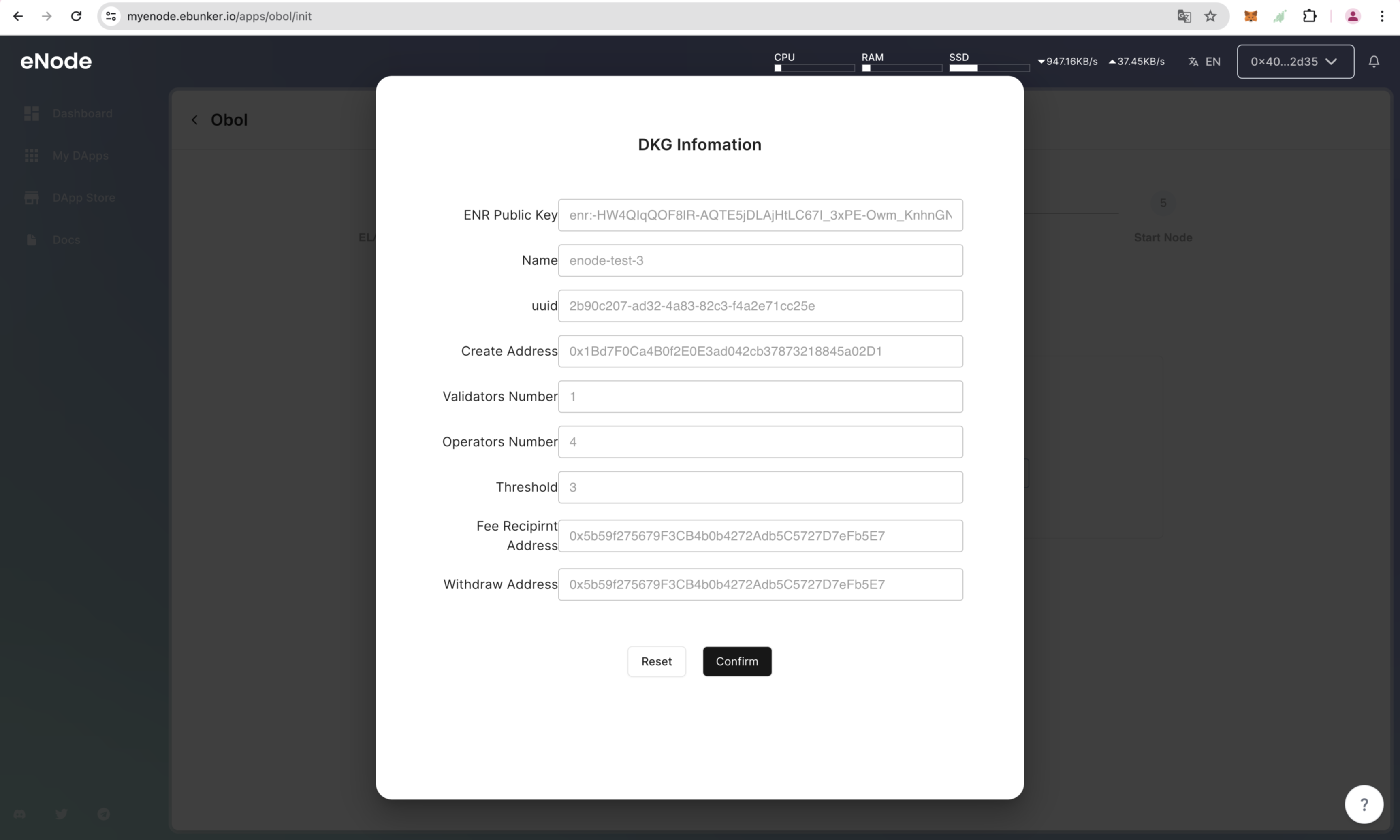
Check the Definition information, confirm it is correct, and click Confirm to complete the Definition file upload.
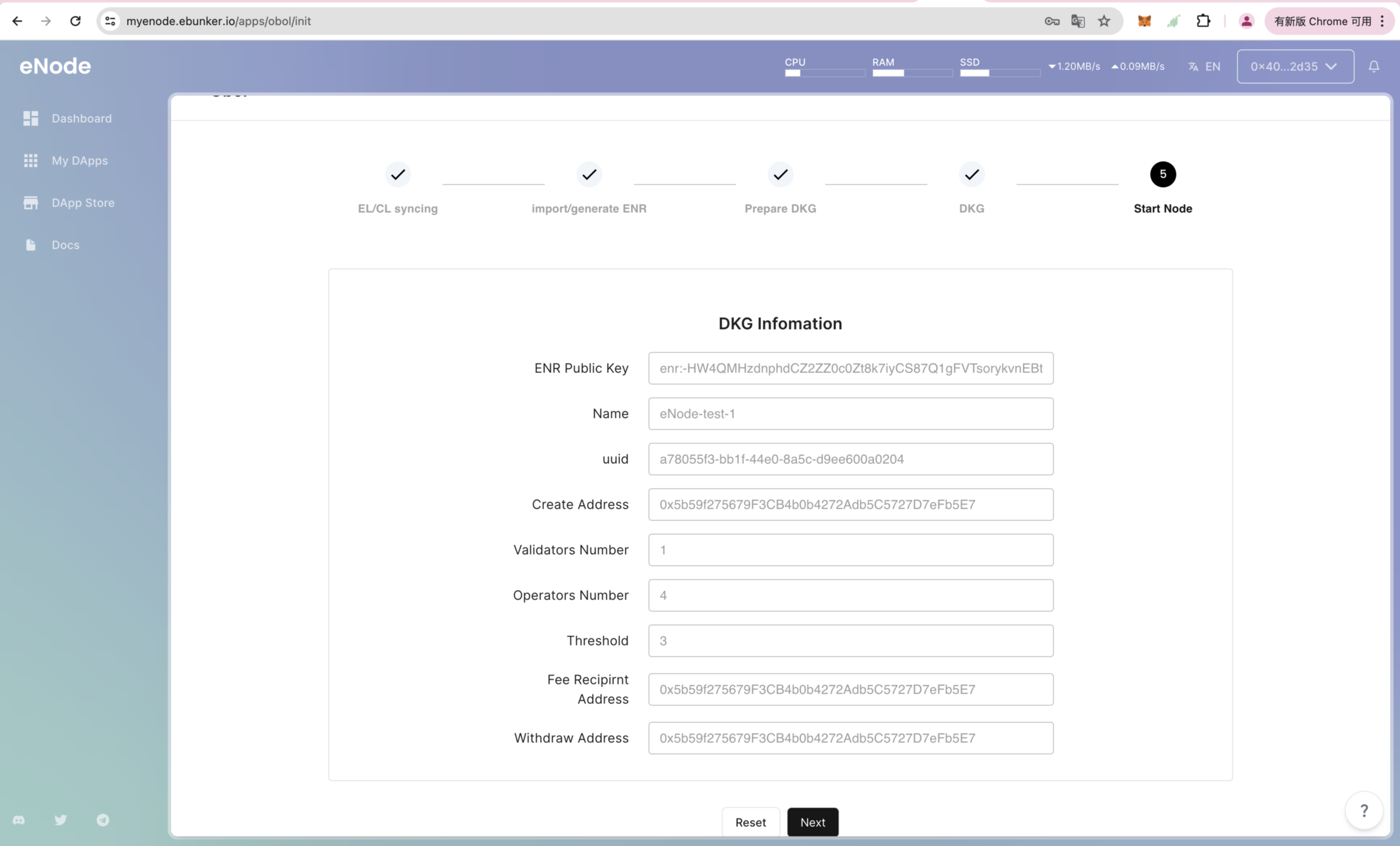
Double-check DKG information. After confirming it is correct, click Next - Start Node.
Click Backup to generate a backup file for Obol Operator. Please securely and completely save the backup file, as it can be used to restore a completed Operator.
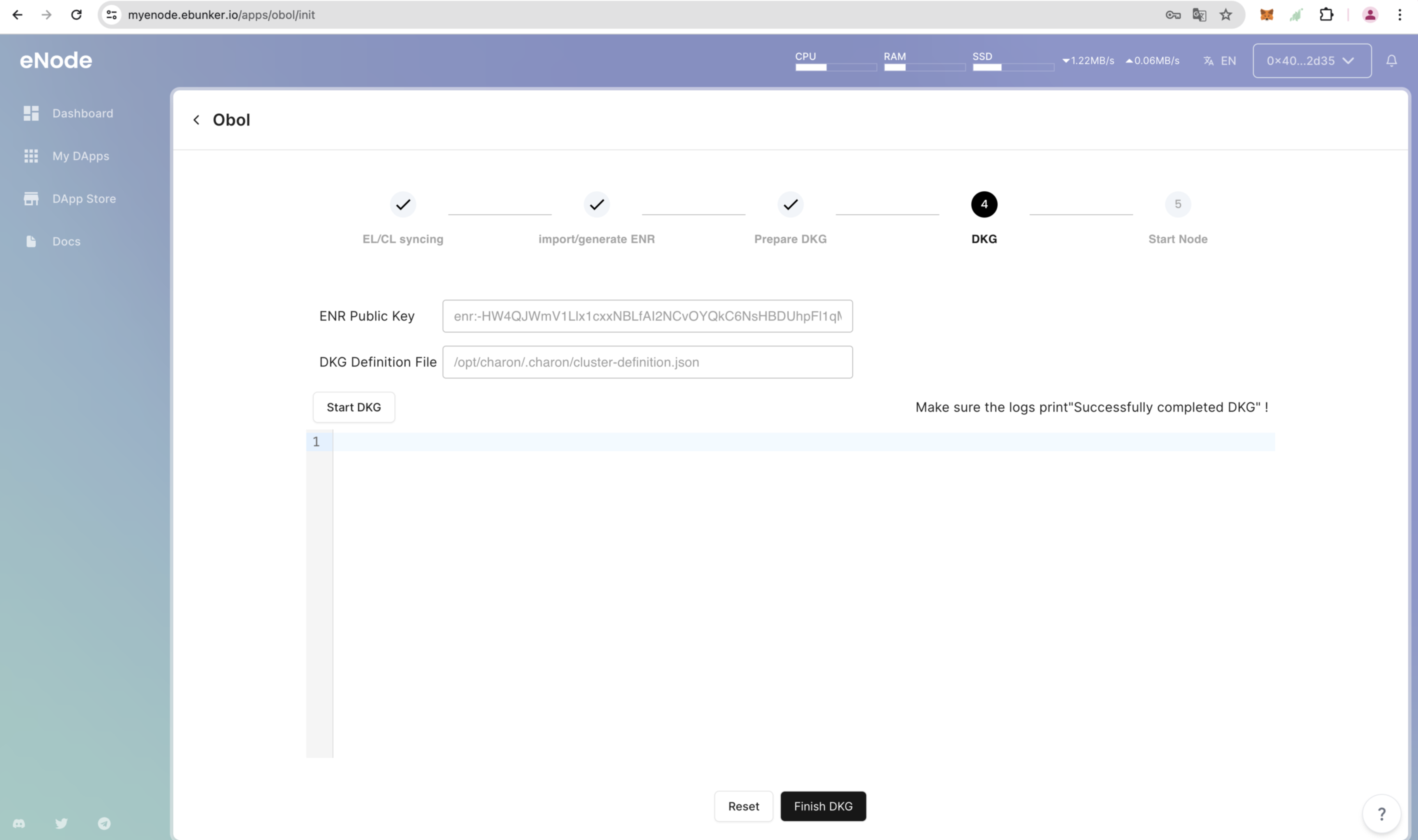
Check the Obol log for any errors, then click Finish to enter the Obol details page.