Step 1: Creating SSV Operator Keys
Boot Setup
- After running Validator, please finished boot setup
- Boot Setup
Install Docker
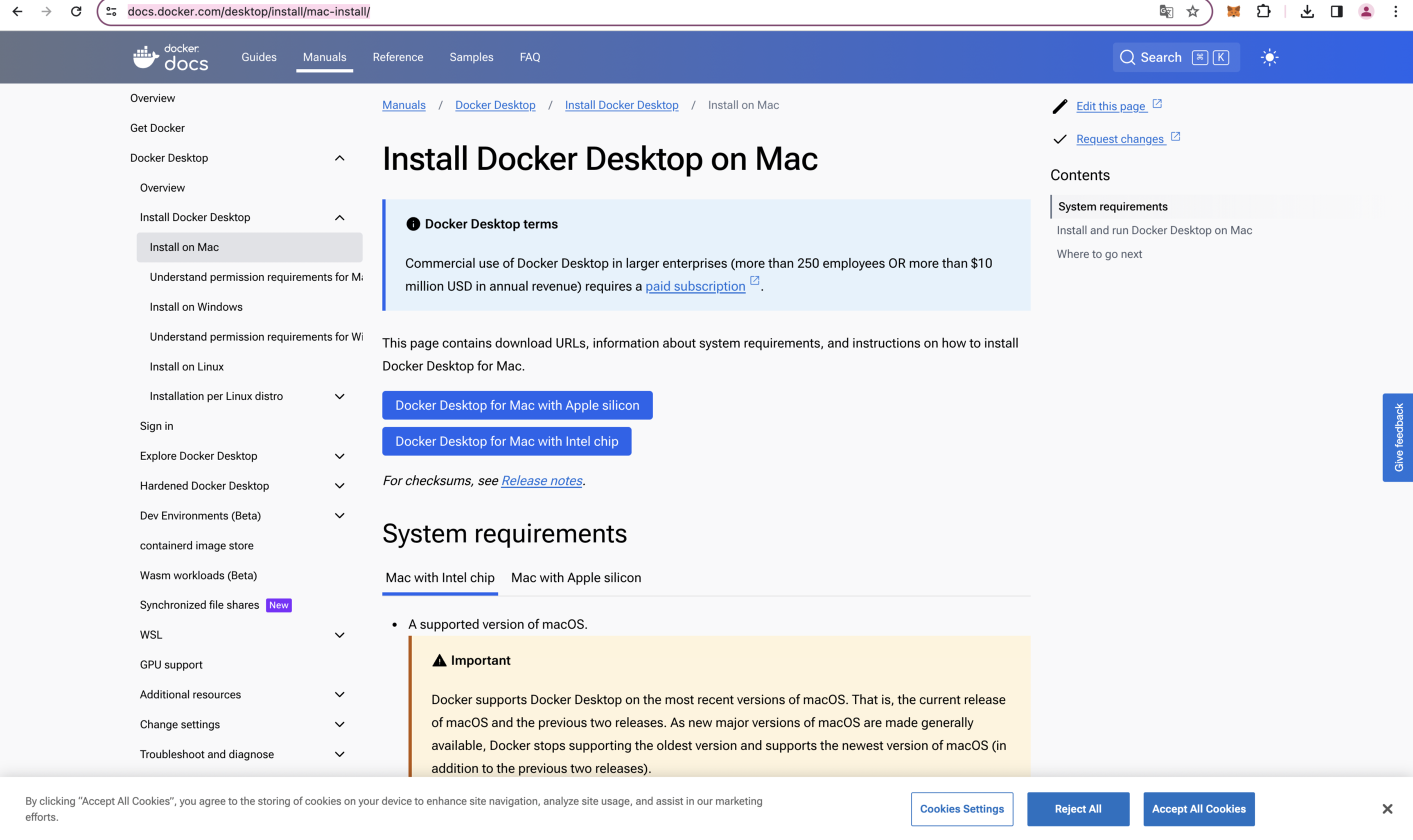
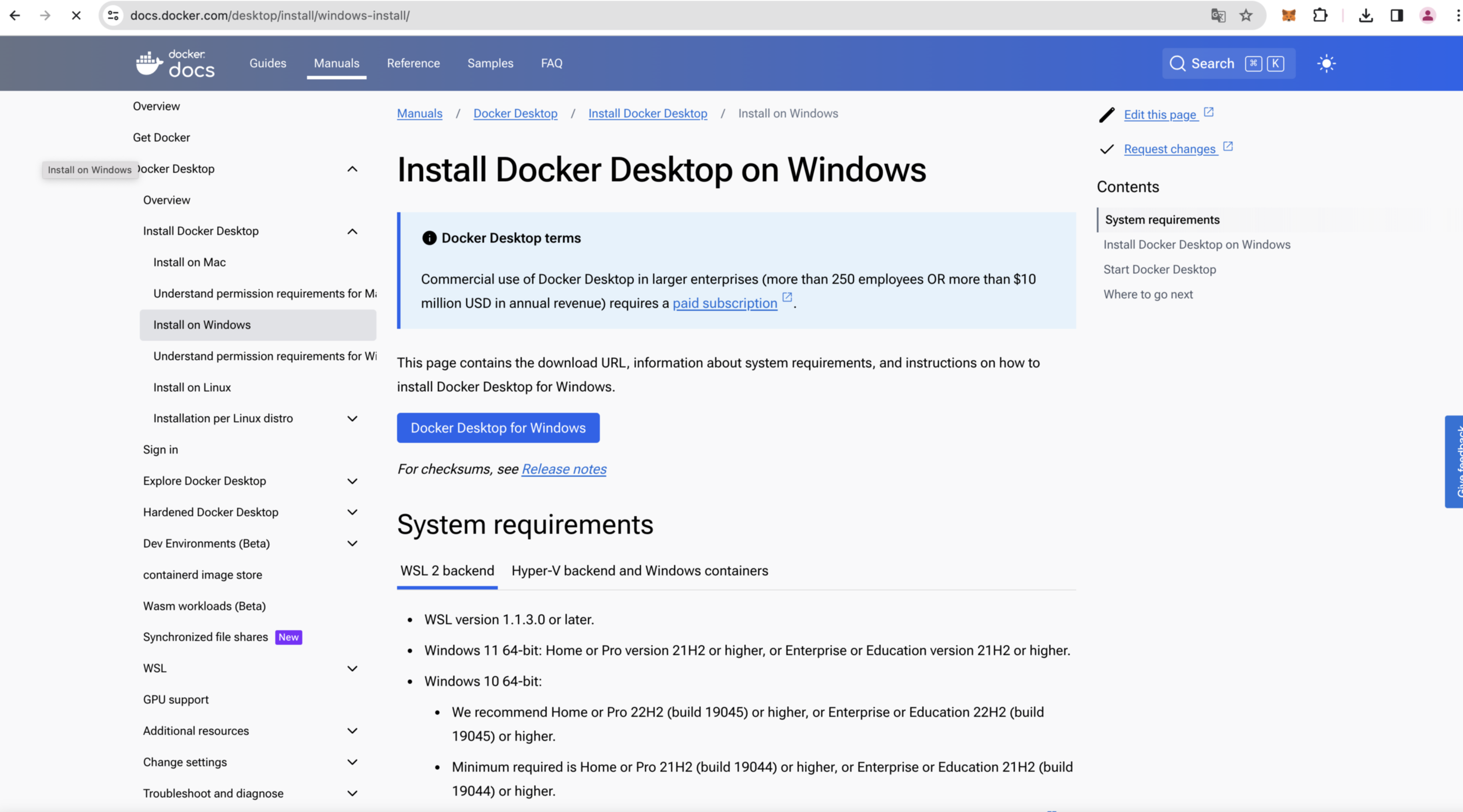
- Visit the Docker official website, select your device and the latest version, and download Docker.
Opening Terminal
- Mac users can open Terminal by searching for Terminal in Launchpad.

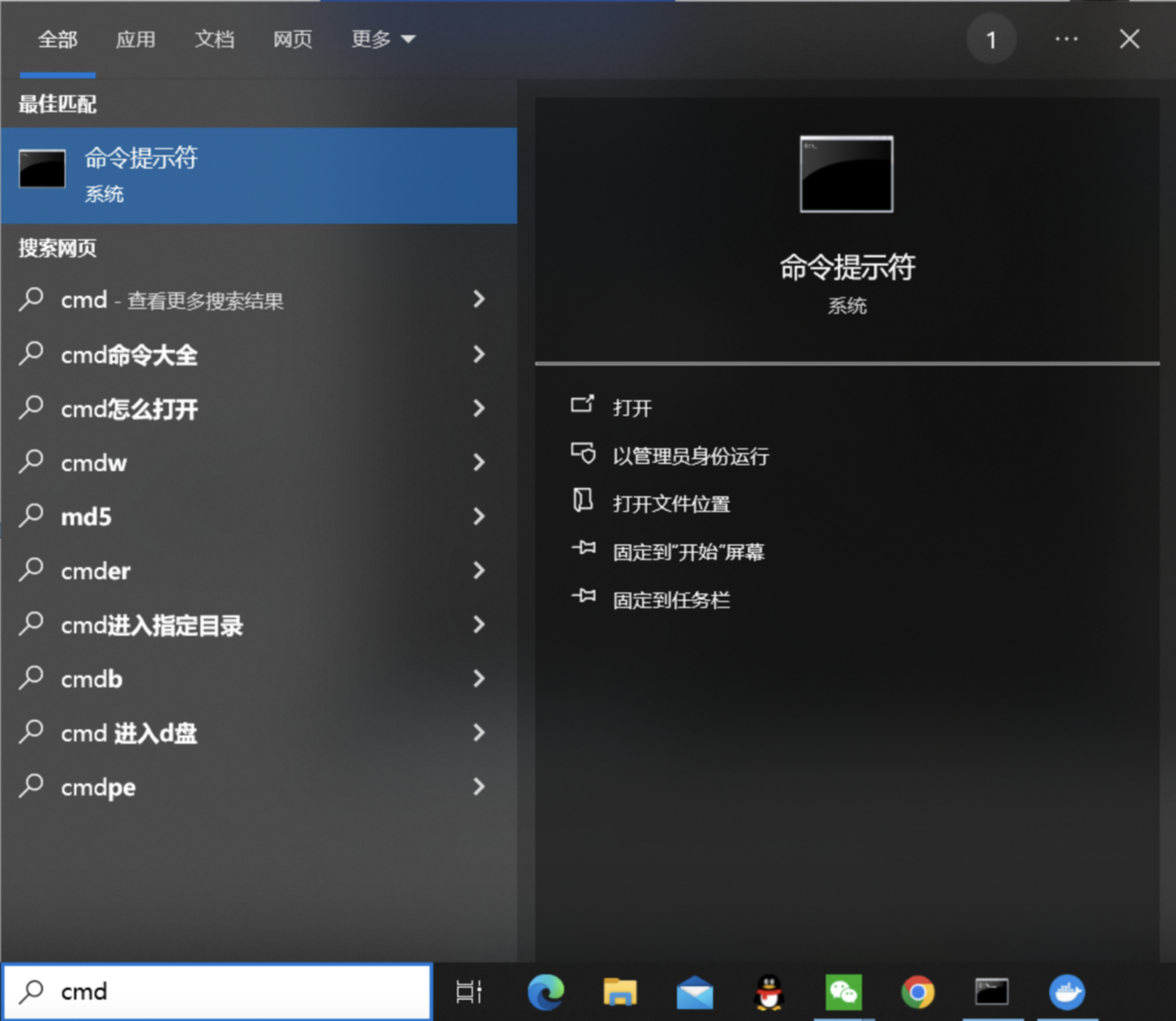
- Windows users can open Command Prompt by searching for cmd in the search box at the bottom left corner.
Creating Password File
Create a file named "password" on your desktop and write the encryption password for the SSV Operator Keys (Encrypted).
Windows users: Create a file named password.txt on the desktop and write the password into it.
Mac users: Enter the following commands in Terminal (replace **** with your password):
cd ~/Desktop
touch password
echo "******" > password
cat password
Encrypting and Generating SSV Operator Keys(Encrypted) File
- Run the following command in Terminal:
docker run --name ssv-node-key-generation -v "$(pwd)/password":/password -it "bloxstaking/ssv-node:latest" /go/bin/ssvnode generate-operator-keys --password-file=password && docker cp ssv-node-key-generation:/encrypted_private_key.json ./encrypted_private_key.json && docker rm ssv-node-key-generation - A file named encrypted_private_key.json will be generated on your desktop. Click to view it.
Viewing Key Pair File and Password
The key pair file is named encrypted_private_key.json
{
"checksum": {
    "function": "sha256",
    "message": "affa5deb755d8ad13a039117dc6850d2a25ad62a870a1e1f8d4ef...",
    "params": {}
},
"cipher": {
    "function": "aes-128-ctr",
    "message": "3022f3b5043b77eda7f336dd0218e6b7e633a3f42f7ae92ed9...",
    "params": { "iv": "12e787716b0e3c30f2d68ed05464c16f" }
},
"kdf": {
    "function": "pbkdf2",
    "message": "",
    "params": {
    "c": 262144,
    "dklen": 32,
    "prf": "hmac-sha256",
    "salt": "bc71d3213fe17f15879e6bc468b30eeeb2d0969176491d87f9b00a37bf314a4c"
    }
},
"publicKey": "LS0tLS1CRUdJTiBSU0EgUFVCTElDIEtFWS0tLS0tCk1JSUJJak..."
}
- See detailed steps at SSV Operator User Guides